Showing posts with label Android. Show all posts

Facebook updates Android SDK with Share Dialog & Open Graph integration

August 20, 2013 Add Comment

Facebook updates Android SDK with Share Dialog & Open Graph integration


Facebook is working hard to improve experiences on Android devices, as the company recently released an update to its Android Software Development Kit (SDK). This update will bring the native Share Dialog to Android, as well as the Object Application Programming Interface.

Here’s what’s in the latest update, courtesy of Facebook:


Image Credit : Facebook

  1. Share Dialog for Android offers a lightweight and consistent way to enable sharing, without needing to login to Facebook first. With one line of code, developers can enable people to skip three extra steps and immediately share to Facebook.
  2. Object API that makes it easier to integrate Open Graph into Android apps. Developers can now directly create Open Graph objects, and no longer need to host webpages with Open Graph tags.
  3. Beta launch of the ability to publish and measure app events for Android apps. Developers can now measure the aggregate number of times a predefined action was taken within an app, to help developers understand the engagement and ROI coming from mobile adds on Facebook.
  4. Redesigned Login UI that looks better, and converts at a higher rate.


Facebook Software Engineer Chris Lang discussed in a blog post what this update can offer for Android apps with Facebook integration:

We are launching in beta the ability to publish and measure app events for your Android apps. Previous versions of the SDK allowed developers and advertisers to measure installs driven from our mobile app install ads product. With app events, you can now also measure the aggregate number of times a predefined action was taken within your app, such as ‘add to cart’ in a commerce app, ‘level achieved’ in a game, or other custom events that help you understand the engagement and ROI coming from your mobile ads on Facebook. Over the next several months, we will be working on improving our optimization and insights and developing new features that will further leverage app events.

What to do? SD Card not Detecting on Android Phone?

April 01, 2013 Add Comment
What to do? SD Card not Detecting on Android Phone?


SD Card not Detected on your Android Device? Couple of hours ago I was also suffering from the same problem! but, now i have fixed it up.when i was researching how to fix it, i have not get an appropriate answer from forums or other blog. but at last i have fixed it up! OK now i will show you step by step how i have fixed it!


Let's Get Started!


Take your Data Backup in your PC.
Insert SD card into your Device, and go to Settings > SD Card and Phone Storage
Format SD Card (you will lose all the data inside the SD Card)
Finally, Click on Mount SD Card
Your SD Card is Installed onto your device, now copy all your backup-ed data!

Make your Android Operating Fast : ANdroid Tips

June 01, 2012 Add Comment

Make your Android Operating Fast : Android Tips


Android is definitely a wonderful invention in the era of modern technology. When it was launched first time in market, it was having a very tough competition with other OS phones e.g iPhone, Symbian, windows etc. But today Android had beaten them up and left far behind in the race of success. Android has made a history of a very big explode in very small time. This explode is of its popularity. Today every big company e.g Sony Ericson, Samsung, Htc, Micromax etc are launching new phones within a week loaded with Android OS.

 Also as android is an open source that’s why it is very popular amongst the users as they can easily customize and upgrade their phones. As android is an open source, that’s why many 3rd party updates are available that are made by some developers using android source. These updates are known as custom roms that are fully loaded with features.
Many phones and tabs that are launched in market these days are loaded with android OS. Android phones are fully compatible with features like 3g, WiFi, Bluetooth, camera primary and secondary both and many more features. The best part is a user can download apps for free and also paid apps from Google Play (Android Market) having about millions of apps there.
I will give you some basic tips to make your android phone work better and faster.


1. Don’t use task killers very frequently:

Do not use task killers very frequently to close all opened apps at a time, only close unwanted apps which are not needed at that time to save battery like games and useless apps. Never force close system apps like gtalk, gmail, gallery, etc because it can harm your phone and your phone will hang whenever you open those apps once again, The system apps needs to be loaded in Ram to work, so if you force close those apps, it will be first loaded into Ram and will take a lot of time to open. So never force close system apps and keep those apps open which you use very frequently.


2. Avoid antivirus to install on your Phone:

Every android user have different antivirus in there phone to prevent their phone from virus attack but you will be shocked after knowing that antivirus applications always make your phone lag by peeking into every task you perform on your phone. If it is really necessary for you to use an antivirus on your android device as you feel you are having very often virus attacks, then minimize the priority of antivirus. By doing this it will save your phone with virus but will not cause lag to your phone.


3. Do not install non-market apps:

Android is not strict like iTunes, android market accepts all apps which are spam free and are not malicious. Whenever a new app is submitted to market first it is scanned and checked if it contains virus or any other malwares, if it passed the tests only then they are published in market. So never install the non-market apps as it may contain virus, spam and malwares which can harm your android devices.


4. Turn off Gps:

Turn off your gps connection when you are not using it. Gps is a high priority process that needs a lot of Ram and memory to run. Also it ruins a lot of battery. Shutting down your gps will not only boost android device performance, but it will also increase the battery backup of your phone.


5. Turn off window animation:

Turning off animations on your android phone or atleast limit them to minimum animations will also make your phone to work fast. Animations for every move on your android phone use more ram.


6. Do not use live wallpaper:

This is very important thing to keep in mind, that using live wallpapers decreases the performance of your android device. It always take a much time to respond if we compare it with simple wallpaper.


7. Limit widgets and app shortcuts:

Do not fill your home screen with unwanted widgets and more app shortcuts. This will take a lot of time to load those apps on start up and thus your phone will boot slowly.


8. Update applications whenever update available:

Whenever there comes a new update for applications installed on your phone, then don’t hesitate to update them, as the updated version comes with a lot of improvements. So it can help a little to stop lag in your phone.


9. Update Firmware whenever update available:

Be sure that you update your phone firmware if its update is available, as firmware updates are having a lots of improvements, tweaks which are really helpful in increasing the performance of your phone.


10. Root your phone:

This is not necessary that you root your phone compulsory, its optional and it you may loose your warranty after rooting but you can easily get it back after unrooting. Basically, rooting gives a user superuser access. Means he can easily make changes in system files according to him to improve phone performance. Also many apps are there which only works when your phone is rooted e.g SetCPU, used to overclock CPU, Recovery manager, used to install custom recovery, Adfree used to delete ads from free version of apps. So basically rooting will increase the performance of your phone.

If you have more tips to increase android performance please feel free to post them as a comment below.

Comcast XFINITY TV App For Android

June 09, 2011 Add Comment

Comcast XFINITY TV App For Android


Comcast has officially released its XFINITY TV app for Android which allows users to browse current television listings and watch on-demand content. With XFINITY TV app, users able to watch favorite On Demand shows and movies right on Android devices for on-the-go entertainment. Xfinity TV app for Android comes with features such as ability to remote control cable boxes, record TV shows, schedule DVR recordings, search the VOD library, change channels, tune directly to on-demand programs in the catalog, and tuning to VOD on the TV.


Features of XFINITY TV app for Android:


  • Browse TV listings customized in your area.
  • Browse an On Demand library featuring thousands of titles.
  • Search TV listings and On Demand for any show or movie.
  • Filter content by genre, network, HD, free and much more.
  • Control your TV and DVR.
  • Conveniently change channels right from the app.
  • Tune directly to On Demand programs to watch on your TV.
  • Schedule DVR recordings of your favorite shows, series, and movies.

XFINITY TV app for Android is completely free and available in the Android Market, but does require a Comcast subscription to use. Users need compatible set-top box or DVR from Comcast that can accept commands from the app. Once installed XFINITY TV app on device and connected to Comcast account, users can control cable box or DVR in anywhere through the device.

Disable: In-App Purchase on iPhone + iPad + iPod touch

June 08, 2011 1 Comment

Disable: In-App Purchase on iPhone + iPad + iPod touch


Most Apple iOS device users have credit card or PayPal billing information set up nicely in iTunes Store account to purchase music, apps, books, TV shows, movies, podcasts and etc. The billing information pre-defined inside the iTunes account also can be used directly when buying something from within the apps, in a feature called in-app purchase.

In-app purchase has been one of the increasingly popular revenue-generating avenue for app developers. More and more apps require in-app purchase to, for example, remove ads, get more functionality, reveal additional content, while games use in-app purchase to unlock levels, possess advanced weapons, upgrade characters, gain strength and etc.

Most in-app purchase can be done easily, as simple as a few taps away. And the “shortcut” allows iOS device such as iPhone, iPad and iPod touch owners especially minors to easily rack up the iTunes bill, knowingly or unknowingly. Kids may purchase in-app without consent of parents or guardians too.

Instead of removing the credit card, debit card or PayPal billing information from the account, Apple provides a way for disable the in-app purchase. Once the in-app purchase function is turned off, nobody who use the mobile iDevice will be able to purchase by using the billing information on your iTunes account from within the app. And the “lock” on in-app purchase is protected by a PIN code. In other words, you want to in-app purchase, you unlock and enable the function by entering the PIN code, otherwise it’s impossible to purchase in-app.

Here’s how to disable in-app purchase on iPhone, iPad and iPod touch:


  1. Tap the Settings app.
  2. Go to General.
  3. Go to Restrictions.
  4. Picture:01
  5. Tap on Enable Restrictions (if it’s not enabled yet).
  6. Picture:2
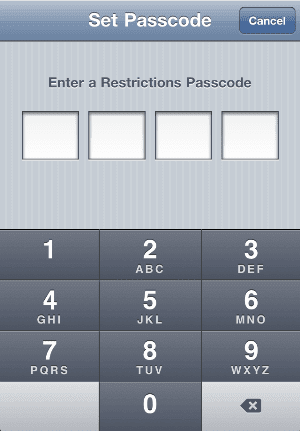
  7. If you just enable restrictions, you will be asked to set up a Restrictions passcode. The passcode is required to unlock the restricted features or disable the restrictions. Enter a 4-digit passcode of your choice.
  8. Pictures: 03 & 04


  9. Swipe to scroll down to “Allowed Content” section, and slide the In-App Purchases to Off to disable in-app purchase.
  10. Picture 05 & 06


Once restriction for in-app purchase is in place, you will need the pass code to re-enable the in-app purchase, and no in-app purchase can be done without the passcode.