Showing posts with label iPad. Show all posts

Old days out of News papers

September 01, 2013 Add Comment

Old days out of Newspapers


New Technology Allows You To Roll Up iPads, TVs Like Newspapers New-age gadgets such as Apple's iPads and TVS could shortly be rolled up like newspapers, thanks to a new technology being formulated by scientists in Australia and Italy.
Researchers at Australia's Commonwealth Scientific and Industrial Research Organisation, Melbourne University and Italy's University of Padua were making use of laser technology to create products comprising TVs, iPads, cellular phones and Kindles more flexile, thinner as well as affordable.

According to mX, the same technology was also being utilized to build up screens, which would replace light bulbs.
The screens would be fastened to a ceiling like wallpaper to light a room.
The researchers were creating prototypes to take to Apple and other makers by the coming year.

According to Melbourne-based CSIRO researcher Jacek Jasieniak, the technology could effortlessly be applied to iPads to make them more accessible.
Jacek Jasieniak said, "It wouldn't be so bulky. So in the future, they'll make (electronic) newspapers that are flexible and rollable. You'll be able to put them in your bag or pocket and read them on the train in a very compact way. It can be applied to any displays, including mobile phones, where you need some color being emitted maybe (at) a high intensity, brightness and purity."
The laser technology would also dramatically lessen manufacturing costs and make colour displays more lustrous.

Top Video Streaming Apps for iPad 3

June 22, 2012 Add Comment

Top Video Streaming Apps for iPad 3


It is always great to have videos and other media on your iPad 3, as you can catch up with them when you are on the go. However, having the same media on both your PC and iPad is a waste of memory space. Furthermore, syncing the devices using iTunes is a laborious process. Another hurdle people face  when trying to transfer video files is while they are transferring a media file in a non-iPad friendly file format. You will have to convert the file into MPEG-4 or H.264 format before transferring them to your iPad.

Streaming apps are the best solution to this problem. Using them, you can directly stream videos from your computer or laptop to your iPad 3. There are many apps you can find on the iStore which dos the job for you. But here  are the best streaming apps you can find in the market today.

Air Playit

This video streaming application is the best app in the list mainly because of its file format conversion capabilities. You don’t have to install third party video conversion software in case the video you want to stream in not in MPEG-4 or H.264 format. It offers live conversion with more than three hundred and twenty audio and video conversion codec. So it literally supports every possible file format.

Air Playit uses the Wi-Fi connection or the 3G/4G network to stream videos from your computer or laptop to the iPad 3. If you are going out of network range, no need to worry. There is a feature that allows you to download the files while it is streaming and store it on your iPad. So, you can watch it even when there is no network connection.

Another unique feature of this app lies in its capability to stream DRM videos from iTunes. It will allow users to watch DRM-protected media files which were directly downloaded from the iStore without taking up any space on your iPad 3. Since the app is built using a simple HTTP server, you can access the playlists using any of the web browsers. You can also stream media to your TV as the app supports TV-Out feature.

Air Video

This app is also similar to the Air Play it app and has all the similar features. The only noteworthy differences between these two are that Air Video is a paid app although it also has a free version, and it cannot play DRM protected videos which were downloaded from the iStore. Another drawback of this app is that the free version will limit the number of items on display. If you can compromise on these features, Air Video is the app for you.

Steps to Use Air Play it

There are two versions of Air Play it: the server software and the client app. You need to install the server software form of Air Play it on your computer or laptop. The client app should be installed on your iPad 3.

After installing the software, add the media you want to stream on the share folder and click on the ‘add folder’ option. Launch the app on your iPad 3 and click on the server to add it. Make sure that the connection is not interrupted in the middle. Browse the folder which you want in your iPad and click on play. You are good to go.

Penny Cooper is a writer by profession and likes to blog about her varied interests. You can find interesting related posts on media server and Home server 2011 on Home system integration blog where Penny is a contributor.

Disable: In-App Purchase on iPhone + iPad + iPod touch

June 08, 2011 1 Comment

Disable: In-App Purchase on iPhone + iPad + iPod touch


Most Apple iOS device users have credit card or PayPal billing information set up nicely in iTunes Store account to purchase music, apps, books, TV shows, movies, podcasts and etc. The billing information pre-defined inside the iTunes account also can be used directly when buying something from within the apps, in a feature called in-app purchase.

In-app purchase has been one of the increasingly popular revenue-generating avenue for app developers. More and more apps require in-app purchase to, for example, remove ads, get more functionality, reveal additional content, while games use in-app purchase to unlock levels, possess advanced weapons, upgrade characters, gain strength and etc.

Most in-app purchase can be done easily, as simple as a few taps away. And the “shortcut” allows iOS device such as iPhone, iPad and iPod touch owners especially minors to easily rack up the iTunes bill, knowingly or unknowingly. Kids may purchase in-app without consent of parents or guardians too.

Instead of removing the credit card, debit card or PayPal billing information from the account, Apple provides a way for disable the in-app purchase. Once the in-app purchase function is turned off, nobody who use the mobile iDevice will be able to purchase by using the billing information on your iTunes account from within the app. And the “lock” on in-app purchase is protected by a PIN code. In other words, you want to in-app purchase, you unlock and enable the function by entering the PIN code, otherwise it’s impossible to purchase in-app.

Here’s how to disable in-app purchase on iPhone, iPad and iPod touch:


  1. Tap the Settings app.
  2. Go to General.
  3. Go to Restrictions.
  4. Picture:01
  5. Tap on Enable Restrictions (if it’s not enabled yet).
  6. Picture:2
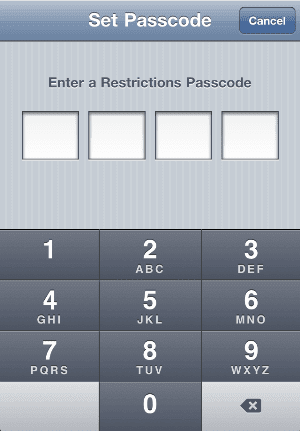
  7. If you just enable restrictions, you will be asked to set up a Restrictions passcode. The passcode is required to unlock the restricted features or disable the restrictions. Enter a 4-digit passcode of your choice.
  8. Pictures: 03 & 04


  9. Swipe to scroll down to “Allowed Content” section, and slide the In-App Purchases to Off to disable in-app purchase.
  10. Picture 05 & 06


Once restriction for in-app purchase is in place, you will need the pass code to re-enable the in-app purchase, and no in-app purchase can be done without the passcode.